
Version 3.0 Release Notes

Version: 3.35
Release Date: Mar 7, 2026

What’s New

This release brings E2CA to the Salesforce mobile app, allowing support agents to manage cases and communicate with customers directly from their phones.

E2CA on Salesforce Mobile App

Agents can now view the E2CA Comment Timeline, compose and send comments — both internal and external and update Case fields — directly from the Salesforce mobile app and some file related security fixes.

Benefits

  • Agents can stay on top of case conversations without switching to a desktop.

  • Faster access to the full case communication history from anywhere.

  • Agents can handle complete case communication end-to-end from their phone.

  • No need to switch to desktop to send replies, update case fields, or attach files.

  • Familiar publisher experience — same features as the desktop version, optimised for mobile.

## Considerations for Mobile Use

While the E2CA mobile app currently offers full access to core features, we are actively exploring the feasibility of the following functionalities w.r.t mobile app:

  • We are checking the feasibility of drag-and-drop functionality for moving recipients between To, CC, and BCC fields, as recipients currently must be removed and re-added.

  • Minor UI Consistency: We are addressing minor User Interface issues, specifically where icons in the Case Files and Team User sections may not display uniformly across all devices.

  • Scheduled Comment Details: Future releases will include hover text on scheduled comments and updated case field values on the timeline.

  • Editor Export Functions: PDF and Word export options are currently unavailable in the rich-text CK-Editor due to feasibility issues with the mobile app.

  • Timeline/Publisher Modals: The Edit and Preview comment modals on the timeline and Publisher are currently disabled due to feasibility issues.

Security Fix Added - Configurable

A vulnerability for HTML Injection in the file upload functionality on the E2CA Publisher page has been fixed.

  1. Agents are now restricted to uploading the file types which are mentioned in the E2CA Admin Settings named as “File Type Restrictions” by the System Administrator with semicolon separated values such as, exe;apk;pptm.

  2. Additionally, agents will be restricted from uploading a file if the name contains any of these special characters:
    \ /:*?"<>|

The above restrictions will work only after the following configurations are enabled/performed:
- Admin must activate the “ContentVersionTrigger” record included in the E2CATriggers Custom setting

- Admin must specify semicolon separated file extensions in the E2CA’s general Admin setting “File Type Restrictions” such as, exe;apk;pptm as shown below

Please NOTE: It will also restrict the Case Creation if the restricted file types are attached to an incoming email sent by the customer.

Version: 3.34
Release Date: Jan 15, 2026

What’s New

This release focuses on managing email threading, agent productivity, and overall usability in Email-to-Case Advance.

We’ve enhanced how long emails are handled, improved canned comment discovery, ensured email conversation continuity, and refined the Classic UI experience—helping agents work faster and more confidently.

1. Clear Indication When Long Email Content Is Truncated

Comments created through emails that exceed Salesforce character limits are now saved more transparently which prevents Data loss.

What’s New

  • When an incoming email is too long, the content is truncated.

  • A clear message is added at the end of the email content to indicate truncation.

  • Agents can now easily identify when an email has been shortened due to size limits.

Benefit

  • Prevents confusion caused by missing Comment.

  • Improves clarity and trust in email-to-case processing.

2. Faster Access to Canned Comments

Canned Comments are now easier to discover and use.

What’s New

  • Canned comments are displayed immediately when the search bar is clicked

  • Canned comments are shown category-wise, making it easier to browse and select the right response

Benefit

  • Reduces response time for agents.

  • Makes it easier to find and reuse predefined responses.

3. Improved Email Thread Continuity for Agent Replies

Customer conversations now remain in a single, consistent email thread upon enabling the option: “Allow Email Threading” in E2CA Admin Setting’s ‘Keep Everyone in the loop’ section when Apex is set as Notification source.

What’s New

  • Agent replies are sent on the same email thread as the original customer email.

  • Prevents creation of multiple email threads for the same case.

  • Customers can see the complete conversation in one place.

Benefit

  • Improves customer experience and communication clarity.

  • Reduces confusion caused by fragmented email threads.

Consideration

  • If this option is enabled and the Case thread Id is included in the Subjects of Email templates, then need to move these thread Ids to template bodies to make Case threading work at Case level.

Version: 3.30
Release Date: Nov 26, 2025

What’s New

This release brings multiple improvements to the Case Comment experience across the portal and agent interfaces.
We’ve enhanced navigation, improved the plain-text editor behavior, and introduced a modern, fully resizable rich-text editor—making comment creation simpler, cleaner, and more efficient for support agents and community users.

1. First & Last Page Navigation in Portal Timeline Pagination

Navigating large Case comment histories is now faster and more intuitive.

What’s New

  • Pagination now displays Page 1 and the Last Page (e.g., Page 7) when multiple pages exist

  • Users can jump directly to the first or last page of comments without clicking through each page

This enhancement significantly reduces the number of clicks needed when reviewing long comment threads.

2. Standard Rich Text Editor (Resizable & Feature-Rich)

We’ve upgraded the comment publishing experience with a modern CKEditor-based editor, replacing the legacy editor.

What’s New

  • Fully resizable editor, remembering previous height settings

This provides agents with a more powerful and user-friendly way to create detailed case updates.

Version: 3.28-3.29
Release Date: Nov 17, 2025

What’s New

We’ve introduced the Comment Publisher experience in Salesforce Classic, giving support agents a smoother and more consistent way to create and manage Case comments outside of Lightning. This brings key usability improvements while maintaining the familiarity of the Classic UI.

Key Enhancements

1. Comment Publisher Now Available in Classic

You can now:

  • Add public and private comments

  • Save comments as drafts and resume later

  • View updates directly within the page as actions are completed

This ensures Classic users get the same productivity benefits previously available only in Lightning.

2. Multiple File Uploads

Classic users now have the ability to:

  • Upload multiple files at once

  • Remove or modify attachments before submitting the comment

3. Standard Rich Text Editor Support

Because CKEditor is not supported in Classic, the Comment Publisher now uses Salesforce’s standard rich text editor, which includes:

  • Basic formatting (bold, italic, underline)

  • Bullets & numbering

  • Simple hyperlink support

All core comment capabilities remain intact.

4. Clear Notifications

A new Classic-friendly toast system notifies users when:

  • A comment is saved

  • A draft is saved

  • A file fails to upload

  • Any error occurs

Version: 3.24-3.27
Release Date: Nov 13, 2025

Enhancements:

  1. Automatic Image Compression:
    Inline images added to CKEditor are now automatically compressed and optimized for faster content loading.

    What's Changed:

    • Images pasted or added to CKEditor automatically converted to a ContentVersion URL to prevent the comment from hitting the character limit.

    • Compression happens instantly without requiring manual action.

    • The manual "Compress Images" button has been removed from the interface.

      Benefits:

    • Streamlined user experience with automatic optimization

      Impact:

      Users no longer need to manually compress images—the system handles optimization automatically when images are added.

      Consideration:

      Only applicable for inline attachments less than 2MB.

Show Preview Email Button Configuration

  • Added new configuration option "Show Preview Email Button on Comment Page" in the Personalize Case Comment Page settings

  • Note: This option works only if the Notification Source is set to Apex

  • When enabled, the Preview Email button is displayed on the Comment Publisher page, allowing users to preview content before sending.

Bug Fixes & Improvements:

Duplicate Case Team Role Name:

Resolved issue where, when cloning a record type (e.g., from "Renewal" to "Renew"), the system automatically creates corresponding Case Team records. However, if the record type name initials are similar, the system generates duplicate name error, causing the logic to break and preventing configuration settings from being saved.

Data Too Large Issue

  • Resolved issue where cases created from emails with special characters would create the email message record successfully, but the long comment record would fail to insert with error "STRING_TOO_LONG" OR “DATA TOO LARGE”.

  • Ensures comment records are created reliably from incoming emails by removing HTML tags without impacting next line, inline images etc. related formatting if this error occurs.

And several other minor bug fixes, UI fixes to create Quick Comment pop up, populate exact Error message and performance improvements to enhance the overall stability and user experience of the E2CA platform.

Version: 3.22
Release Date: September 5, 2025

1. New Comment Publisher Page with Consolidated subsections

Overview:

We've provided a new comment publisher page as an alternate option that consolidates all Comment Publisher subsections – Case update section, case summary section, existing comment section and publisher section with sticky footer at the bottom.

Key Features:

  • The existing 3.0 version publisher page did not have sticky footer buttons at the bottom, now in this release we have moved the footer section to the bottom by default, but highlighted label remain the same.

  • Fixed Layout Option (Alternate Publisher Page): Standard publisher label highlighted in the above screenshot is removed and button section is fixed at the bottom providing that the sub-sections are not relocatable in this page.
    Tab API Name: “E2CAdv__E2CA_Comment_Publisher_Container”

So admins now have two alternatives to configure the E2CA publisher page as per their needs.

2. First and Last Pagination Icons Enhancement

Overview:

Enhanced the Comment Timeline pagination controls with new first and last page navigation icons, providing users with quick access to the beginning and end of comment threads.

New Naviga tion Features:

  • First Page Icon (<<): Jump directly to the first page of comments

  • Last Page Icon (>>): Navigate instantly to the last page of comments

  • Complete Pagination Set: Now includes First, Previous, Current Page, Next, and Last navigation options

3. Bug Fixes & Improvements:

This release includes several important bug fixes and performance improvements to enhance the overall stability and user experience of the E2CA platform.

Version: 3.21
Release Date: Aug 13, 2025

Enable Image Text Extraction

The Image Text Extractor feature in E2CA leverages Optical Character Recognition (OCR) to extract text from images attached to comments. Designed for Salesforce Lightning Experience, this feature enables agents to preview images, select specific areas for text extraction, and utilize the extracted text for case management or customer responses. It automates the process of handling image-based inputs (e.g., screenshots), reducing manual effort and improving accuracy. Integrated with E2CA's existing workflows, it supports global support teams by processing images from emails and case updates efficiently.

How to Access

Admin Configuration

  1. Log in to Salesforce Lightning Experience with System Administrator privileges.

  2. Navigate to the E2CA Console App.

  3. Select Manage General Configuration > Manage Case Comments to access the Image Text Extraction settings.

    • Enable the Enable Image Text Extractor toggle.

    • Enter a valid Domain Base URL (e.g., https://your-org-domain.lightning.force.com).

    • Note: An error message (e.g., "Invalid Domain Base URL. Please enter a valid Salesforce Lightning Experience URL.") appears if the URL is incorrect; correct and save to proceed.

  4. Click Save to apply settings.

Agent Access

  • Agents access the feature directly on the Comment Timeline of a Case record after the admin enables it.

  • No additional setup is required for agents; the Extract Text button appears automatically for image attachments.

  • Images attached to case comments are displayed in the Comment Timeline with a clickable link.

How to Use

Previewing and Extracting Text

  1. Access Image in Comment Timeline:

  • Open a Case record and navigate to the Comment Timeline.

  • Locate a comment with an image attachment (indicated by a file link).

  • Hover over the image link to view the attached image.

  1. Extract Text from Image:

    • When viewing the image preview, click the Extract Text button located at the bottom of the preview.

    • The system will display the Extract Text from Image dialog with two panels

  2. Select Text Extraction Method:

A. Full Image Extraction:

  • By default, the system will process the entire image.

  • Click the Extract Image Text button to extract text from the full image.

B. Selective Text Extraction:

  • For more precise extraction, use the cropping feature:
    i. Discover Available Options Through Tooltips:

  • Hover over the Image Preview information icon (i) to reveal the tooltip: "Hover over the image to crop and focus on the desired area before extracting text."

  • This tooltip provides guidance on how to use the selective extraction feature.

    ii. Use the Cropping Tool:

  • Hover over the image to reveal the Crop Image icon (pencil icon).

  • Click this icon to activate the cropping tool.

  • Draw a selection box around the specific text area you want to extract.

  • The system will only process text from the selected area.

  1. Review Extraction Results:

  • The left panel shows the original image or your selected area.

  • The right panel displays the extracted text after OCR processing.

Considerations:

  • Hover over the Extracted Text information icon (i) to see important factors affecting extraction quality:

  • This tooltip helps users understand potential variations in extraction results.

  1. Use Extracted Text:

    • Review the extracted text for accuracy.

    • Click Close to return to the case.

  2. Handling Partial Text Extraction:

    • If the OCR process doesn't capture all text or if you need only specific portions of the text, you can manually select and copy just the relevant sections from the extracted text panel

Tips

  1. Image Quality: For best results, ensure that images are clear, well-lit, and have good contrast between text and background.

  2. Image Format: The feature supports common image formats including JPG, JPEG, PNG, and GIF. For best OCR performance, use PNG or high-quality JPG files.

  3. Text Formatting: OCR works best with standard fonts and may struggle with highly stylized text, handwriting, or text embedded in complex backgrounds.

  4. Pay Attention to Tooltips: Hover over information icons (i) throughout the interface to reveal helpful guidance and tips.

Bugs/ Fixes

Fixes for Inline Images in Email Template Preview.

Auto-Draft Feature:

E2CA supports an auto-draft capability in the community portal. While composing a comment, the system automatically saves the draft at defined intervals (configured in seconds). This ensures that even if a user navigates away or closes the page accidentally, their latest work is preserved and can be resumed later without losing data.

The auto-save interval can be configured from Admin Configuration → Case Comment Page → Personalize Case Comment Page using the “Run Auto-Save Draft After (Seconds)” setting.

Version: 3.16
Release Date: July 7, 2025

Overview

We are excited to announce the release of Email-to-Case Advance (E2CA) version 3.16. This update brings several enhancements to improve user experience, address customer feedback, and introduce new functionality to help support teams deliver exceptional customer service.

New Features and Improvements

Updated Madcap Documentation Links

  • All documentation links throughout the application have been updated to ensure users can access the most recent help resources

  • Improved access to support documentation for better user guidance

SauceLabs CKEditor Support for Text Color Formatting After Hyperlinks

  • Resolved a formatting issue in the CKEditor where text typed immediately after a hyperlink would incorrectly appear as part of the link (blue color) on the comment timeline.

  • Now, such text displays in standard black color in the comment timeline, maintaining professional formatting in customer communications.

  • This correction applies across all modes:

    • Save (immediate send)

    • Save as Draft

    • Schedule for later

Note: During editing in the CKEditor, text may still appear blue due to DOM rendering limitations, but it will render correctly when published or displayed on the timeline.

Inline Image Support and Compression Fixes in CKEditor

  • Resolved an issue where inline images added via the CKEditor on the comment publisher page were not appearing in the comment timeline, resulting in blank comments when no text was added.

  • Now, comments containing only images are properly saved and displayed on the timeline, ensuring image-based communication is not lost.

  • Fixed the "Compress Image" button functionality:

    • Images are now successfully converted to URLs, enabling proper inline rendering and reducing size overhead.

  • These updates improve the reliability and clarity of visual communication in case comments.

Auto-Populate and Multi-Select Picklist for Account Team Roles

  • Simplified the Account Team Role assignment process for administrators:

    • Replaced the manual input field with a multi-select picklist that auto-populates Account Team Roles from Salesforce.

  • This update eliminates the need to copy API names manually from Setup, reducing errors and improving setup efficiency.

  • Admins can now quickly select multiple predefined roles to ensure the right stakeholders stay in the loop on case updates.

Immediate Comment Body Recognition

  • Fixed an issue where, when users pasted content into the comment body and immediately clicked “Schedule” or “Save as Draft”, the system incorrectly flagged the comment as blank.

  • System now properly detects and processes content as soon as it's pasted

  • Improves user workflow efficiency when composing responses

Differentiated Icons for Preferred Channels

  • Added distinct visual indicators for different communication channels

  • Improved at-a-glance identification of contact preferences

  • Helps support agents quickly identify the customer's preferred communication method

Version: 3.0

Release Date: 11 March 2025

Executive Summary

Email-to-Case Advance (E2CA) 3.0 introduces a modernized user interface and enhanced functionality to Salesforce's standard Email-to-Case capabilities. Built on Lightning Web Components (LWC), this release delivers improved performance, intuitive navigation, and sophisticated case management tools.

Key Benefits

  • Modern, intuitive user interface with streamlined navigation

  • Enhanced case management capabilities

  • Improved team collaboration features

  • Flexible configuration options

  • Robust security controls

What's New?

We're excited to announce following improvements in E2CA 3.0:

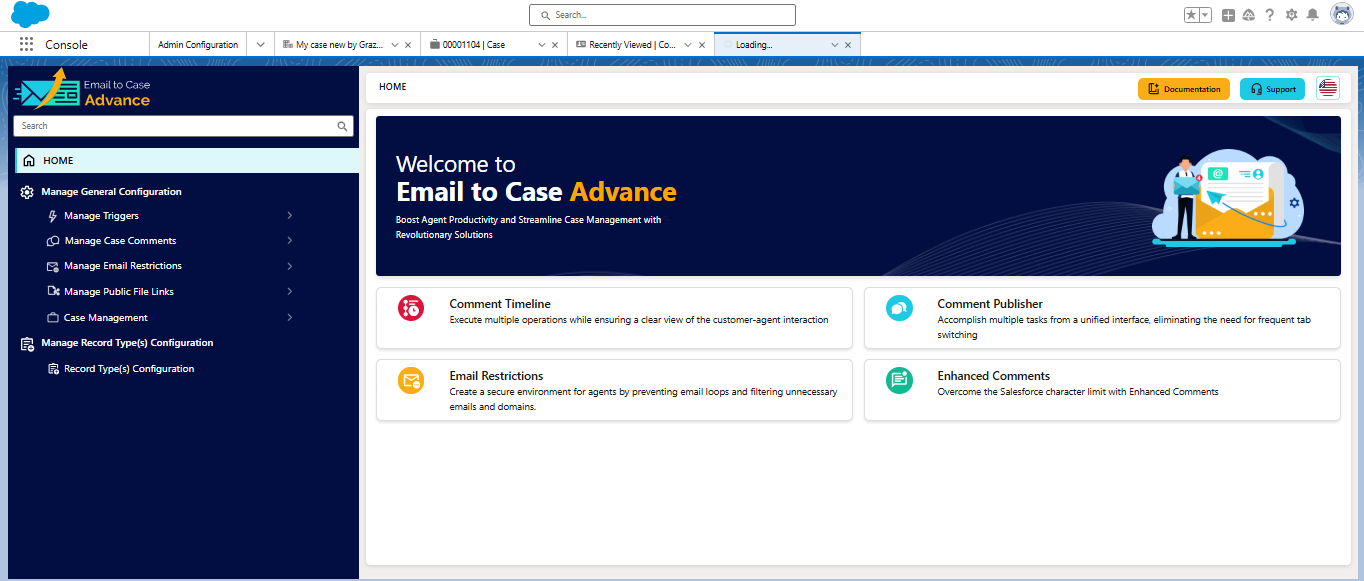
  1. Vibrant UI: A completely redesigned user interface that makes managing your cases easier than ever
  1. Record Type Personalization - A Game Changer: The ability to customize settings based on record types, giving you more control over how different cases are handled

One of the biggest improvements in this release is the ability to have different settings for different types of cases. Previously, all cases followed the same rules and settings. Now, you can customize how E2CA works based on your case record types.

For example, you might want:

  • Different email templates for sales cases versus support cases

  • Separate watcher lists for high-priority and standard cases

  • Personalised Comment publisher page based on the record type

How Does Record Type Configuration Work?

Setting up record type-specific configurations is straightforward, and you can customize various features for each record type. Here are some practical examples of what you can do:
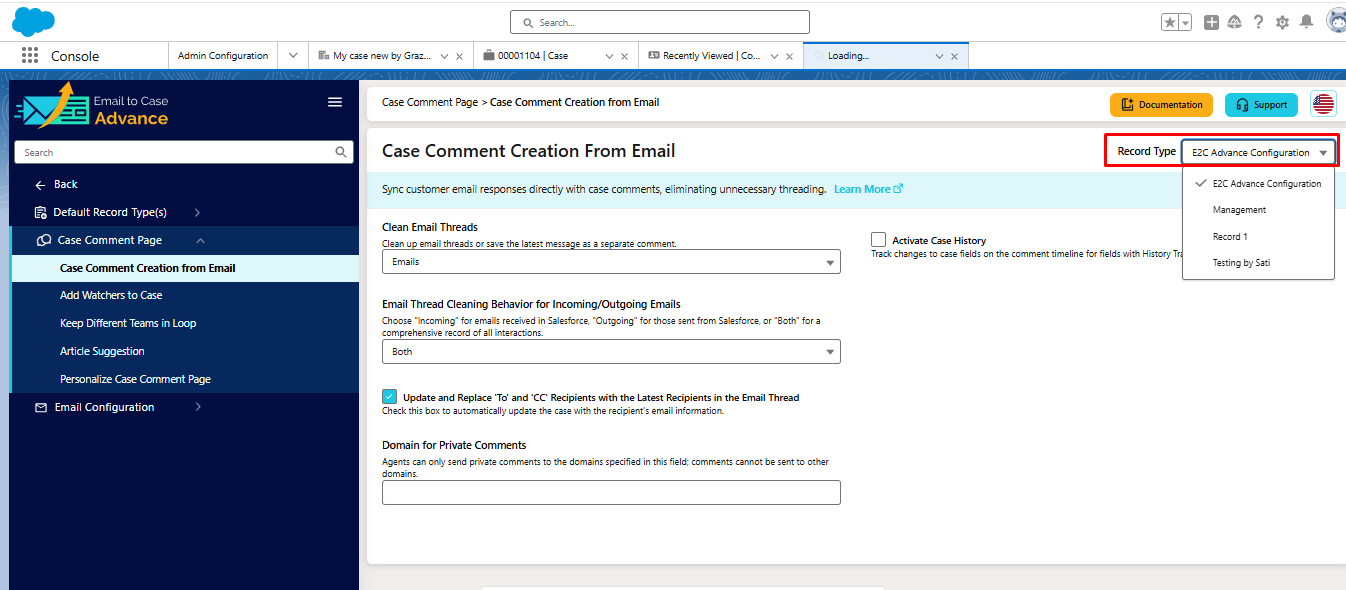
Email Settings

Case Comment Creation

  • Customize how email threads are handled:

    • IT cases: Keep full email history for technical documentation

    • General support: Clean up email threads for better readability

Watcher System

  • Set up different watcher rules:

    • High-priority cases: Automatically add department managers

    • VIP customer cases: Include account managers and support leads

    • Internal cases: Add relevant department heads

Team Communication

  • Configure team notifications based on case type:

    • Product issues: Notify product team members

    • Billing cases: Keep finance team in the loop

    • Feature requests: Include product management team

Article Suggestions

  • Customize knowledge base suggestions:

    • Technical cases: Suggest technical documentation

    • Basic support: Recommend FAQs and guides

    • Product inquiries: Show product documentation

Case Comment Page Personalization

The case comment page can now be customized for each record type, giving you complete control over how your team interacts with cases. Here's what you can customize:

  1. Rich Text Options

    • Enable Rich Text Comment Editor for formatted text

    • Option for Advanced Text Comment Editor (CKEditor) with advanced editing features

    • Choose the best editor based on team needs

  2. Comment Management

    • Enable Email Templates for consistent responses

    • Set up Canned Comments for quick, standardized replies

    • Configure Comment Scheduling for timed submissions

    • Auto-Save Draft feature with customizable intervals (in seconds)

  3. Page Layout Options

    • Enable Case Summary (Read-Only Fields) for quick overview

    • Enable Case Update for direct field editing

    • Customize field sets for different record types

  4. Case Update Section

    • Select specific fields to display

    • Customize the update experience per record type

    • Control which fields can be edited

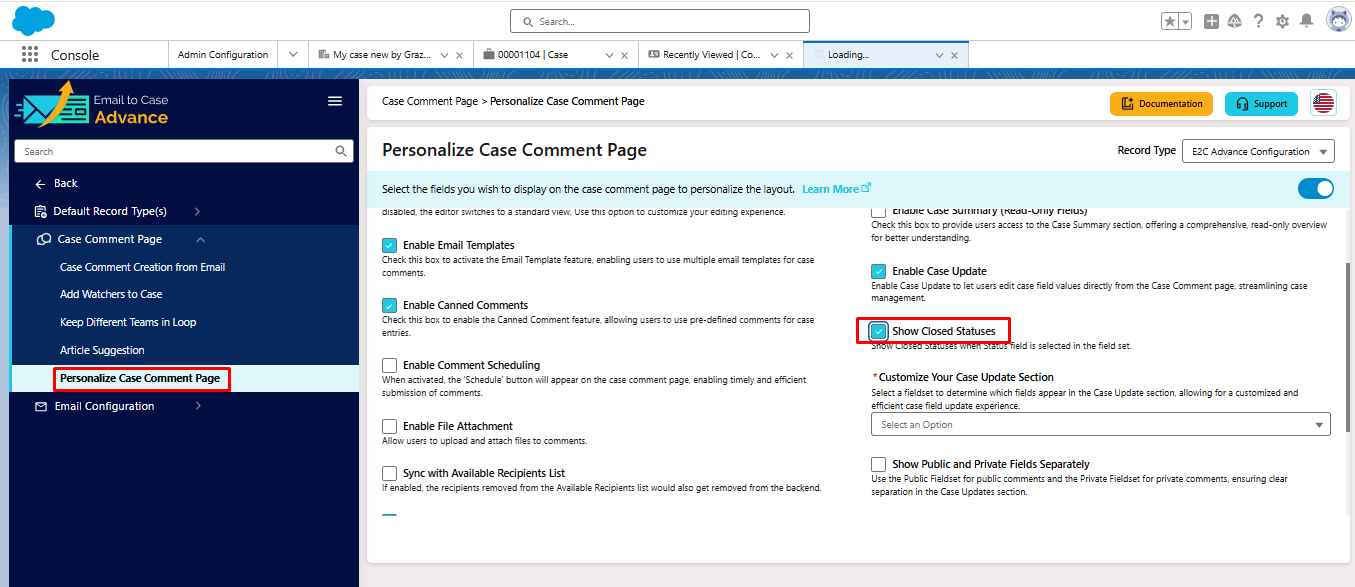
    • Show Closed Statuses when Status field is selected

    • Streamline case management workflows

For example:

  • Sales Inquiries: Enable rich text editor and email templates

  • Technical Support: Include advanced editor and canned responses

  • Customer Service: Focus on quick responses with standard templates

  • Internal Cases: Enable full editing capabilities with case updates

You can start with our default configuration and then clone and customize it for specific record types as needed. This means you don't have to set up everything from scratch - just change what needs to be different.

3. New Features introduced:

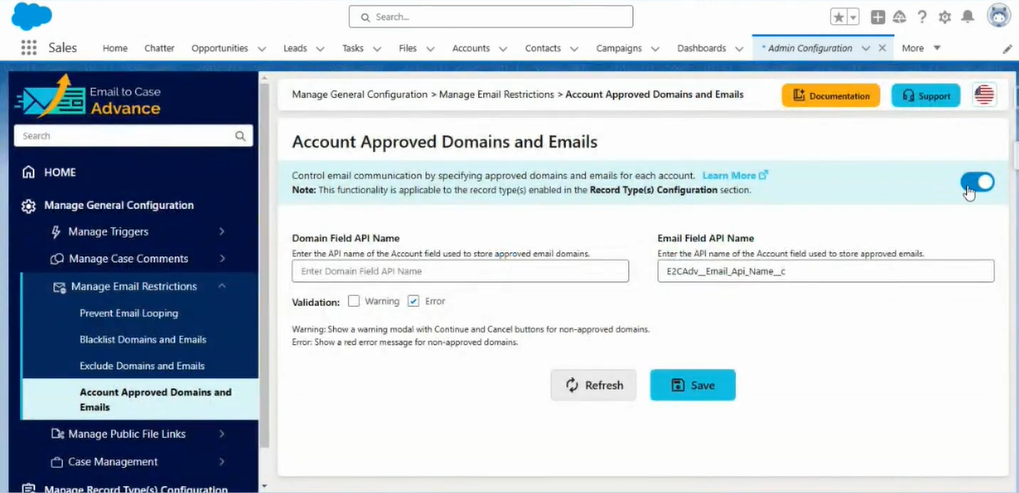
  • Account Domain Restrictions: We've added a new way to control which email domains and emails can be used for communication based on account settings. You'll find this feature in the Manage Email Restrictions section of E2CA configuration
  • Show Closed Statuses: This new feature shows ‘Closed’ case statuses in your Status dropdown in the picklist values when you're working with cases. It automatically updates based on your Salesforce Support Settings. You'll find this option in the Personalize Case Comment Page section
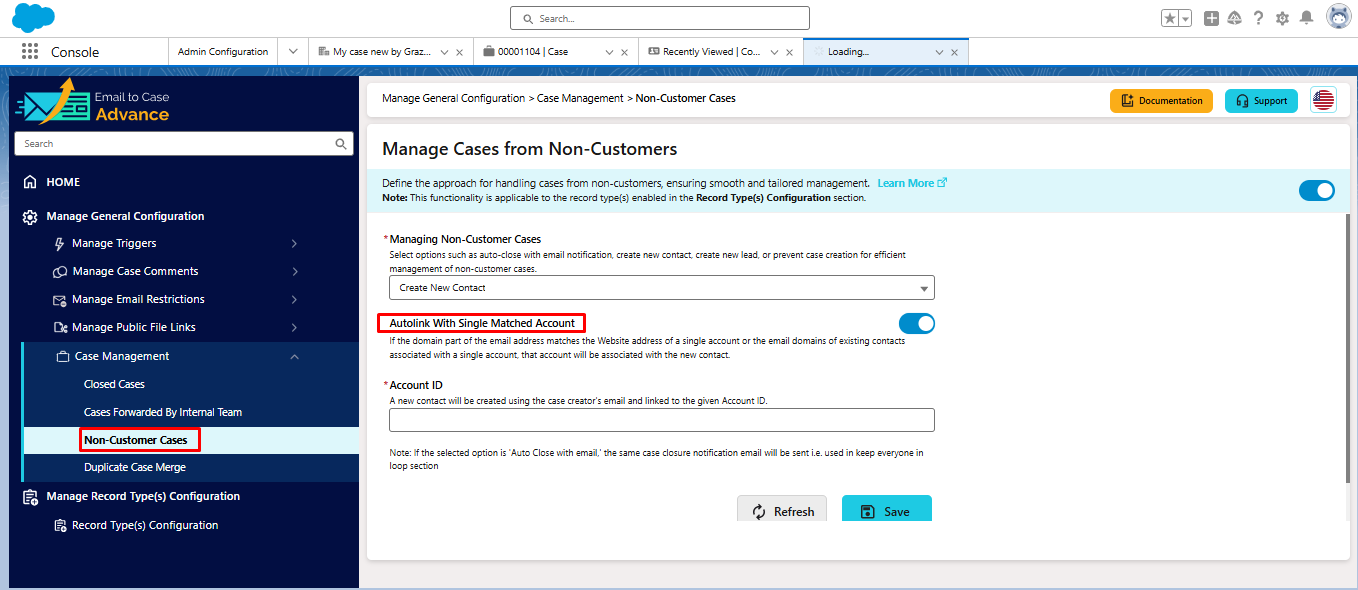
  • Autolink with single matched Account: This new feature automatically links new contacts to existing accounts when handling cases from non-customers. This feature helps keep your data organized by connecting new contacts to the right accounts based on their email domains.
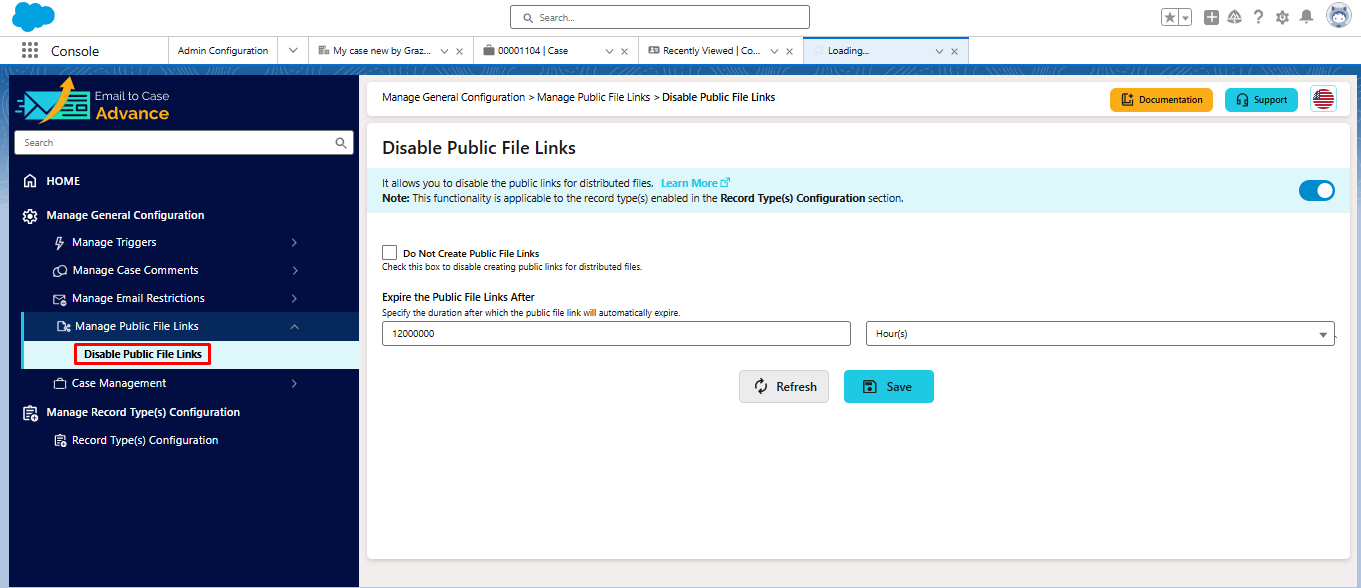
  • Disable Public file links: We've added new controls for managing public file links in your cases. This feature lets you either completely disable public file links or set them to expire automatically after a specific time period. You'll find this option in the Manage Public File Links section
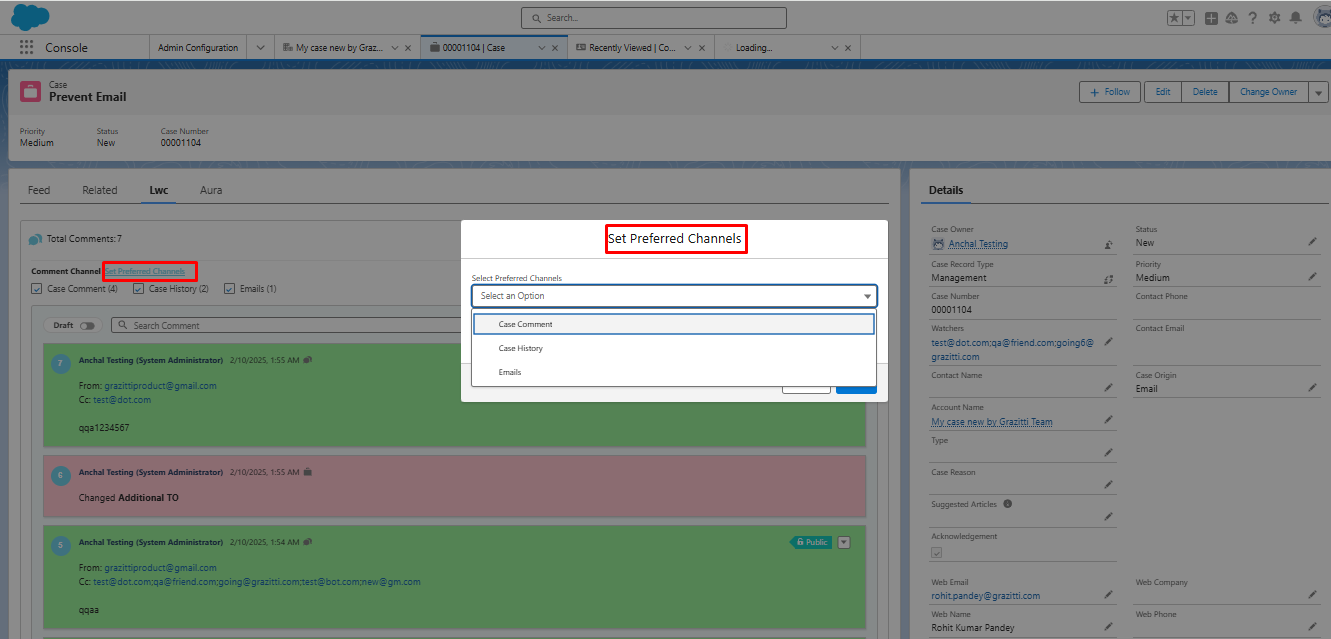
  • Set Preferred Channels: We've added a new way to customize how you view your case communication timeline. This feature lets you choose which types of communications you want to see, making it easier to focus on the information that matters most to you.
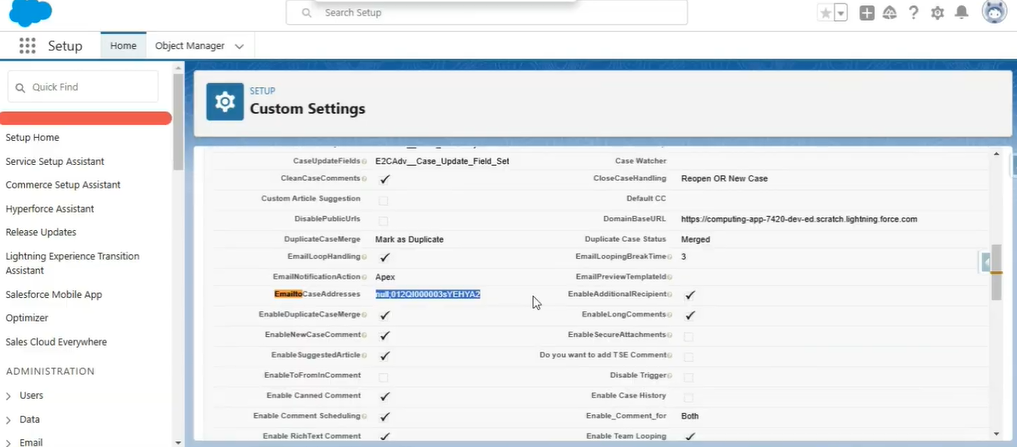
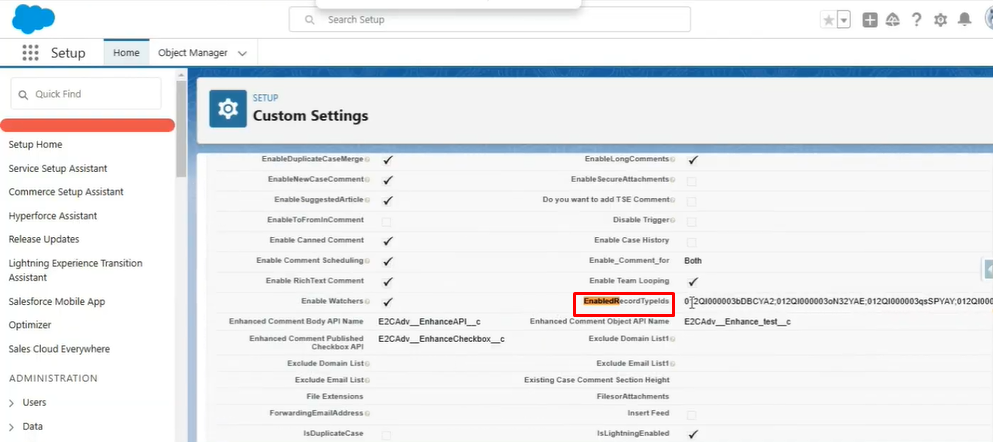
Note for existing clients: After the E2CA 3.0 release, If a client does not want to move to a new release, then from custom settings, we can copy the value of EmailtoCaseAddresses and paste it in the EnabledrecortypeIDs field. This will be a hotfix until the client decides to move to a new version of E2CA.
4. Making Configuration Easier

We've also improved how you manage these settings:

  • All record type configurations are in one convenient location

  • You can copy settings from one record type to another(Clone option)

  • The changes can be saved and tested before going live

  • Each feature can be turned on or off independently for different record types

Benefits for Your Team

This new approach offers powerful advantages for organizations with diverse support needs:

Improved Team Efficiency

  • Each department can have its own optimized workflow

  • Teams can handle cases according to their specific processes

  • Support agents see only the relevant tools and information

  • Automated processes can be customized by department

Better Customer Experience

  • More relevant automated responses

  • Faster routing to appropriate teams

  • Consistent handling of similar cases

  • Department-specific knowledge suggestions

Enhanced Security and Compliance

  • Stricter controls for sensitive case types

  • Custom file sharing rules by department

  • Specific watcher lists for confidential cases

  • Controlled access to case information

Streamlined Communication

  • Department-specific email templates

  • Customized notification rules

  • Team-specific collaboration tools

  • Relevant stakeholder involvement

To start using record type-specific settings:

  1. Go to "Manage Record Type(s) Configuration" in E2CA

  2. Choose which record types you want to customize

  3. Enable the features you need for each type

  4. Configure the settings to match your team's needs

  5. Test the configuration with sample cases

Technical Requirements

  • Salesforce Enterprise Edition or higher

  • Lightning Experience enabled

  • Standard Email-to-Case functionality

Support and Documentation

We've made sure you have all the help you need:

  • Detailed documentation is available within the app

  • Each feature has contextual help via "Learn More" links

  • Our support team is ready to help with any questions

  • Configuration guides are available for complex setups